
AI-Powered Summary
- PayU has introduced webhooks to notify merchants' systems whenever a payment occurs.
- A webhook is an HTTP callback triggered by specific events, such as successful or failed payments.
- PayU sends callback messages as HTTP POST requests to the specified webhook URL, sharing payment details for processing.
- Merchants can create a webhook by setting up a URL on their server and configuring it in their PayU merchant account.
- PayU verifies the webhook URL by sending a dummy callback message to ensure it can receive POST requests.
- Once verified, the webhook will send callbacks to the URL whenever the associated event occurs.
We have been receiving requests from many of our merchants to provide a way to update their systems whenever a payment happen. We listened to the feedback and have launched webhook feature for the same.
What is a webhook?
Webhook is a HTTP callback. The callback is done to a url specified while creating a webhook.
The webhook callbacks are event driven i.e. a callback to a webhook will be done whenever the event associated with the webhook occurs.
Example –
Successful Payment Webhook – The event associated with this webhook is Successful Payment. So whenever a successful payment happens, a callback to the webhook URL will be done.
How does the PayU webhook work?
PayU will be sending the callback messages as HTTP POST requests to the URL specified.
Currently, we are providing 2 types of webhook events –
- When a payment is successful
- When a payment is failed
So whenever a payment is successful/fails for your merchant account, you can receive a callback to your server. In the callback message, all the payment details are shared, so you can update your server and process the order as per your business processes.
The callback request format can be viewed here – here.
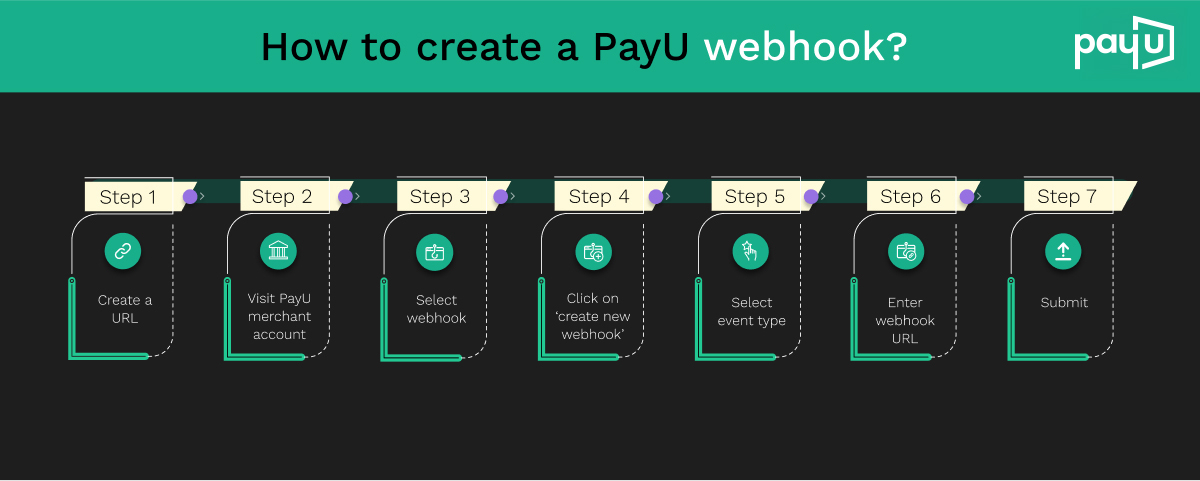
How do I create a webhook?
-
- To create a webhook, you will need to create a URL at your server which will be able to receive the callback message that will be sent.
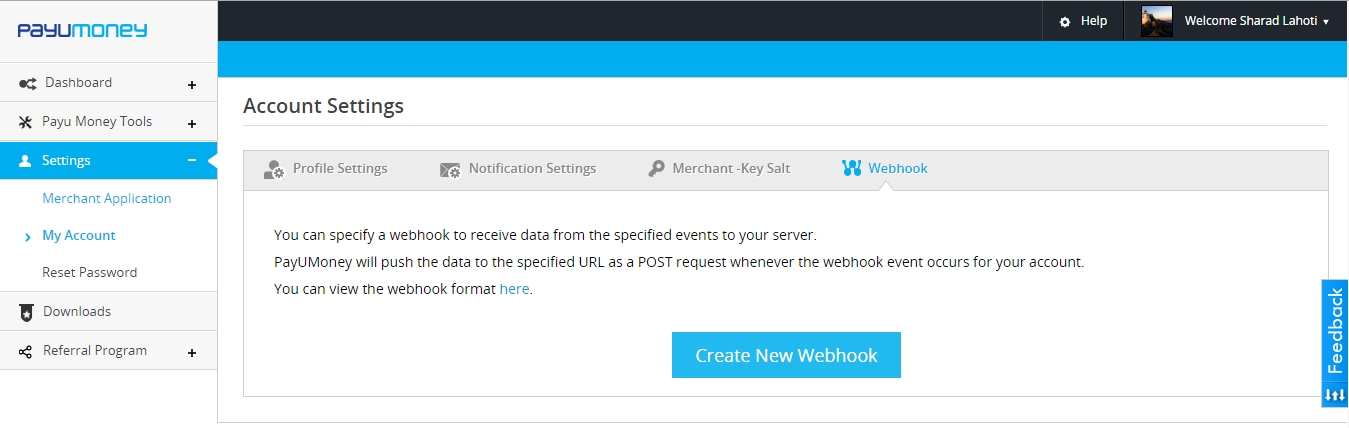
- Once you have created the url, you can go to your PayU merchant account -> Settings -> My Account ->Webhook
-
- Click on Create New Webhook button
- Select the event type for which you want webhook to be added
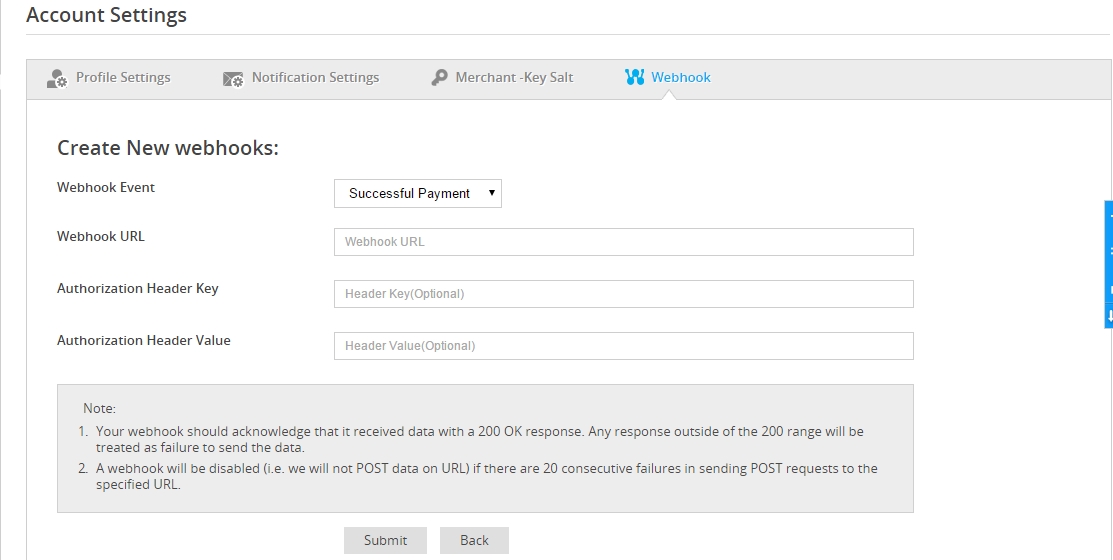
- Enter webhook URL (that you have created in 1). Note that you can’t create a webhook with a url that is not working (receiving callback request)
- Optionally, You can also provide a static authorization header & key so that your server identified that the callback message is sent from PayU server
- Submit
Upon submission, PayU server will send a dummy callback message to confirm whether the url provided is able to receive POST requests or not.
If your URL isn’t accepting the dummy request sent, then you will be allowed to create that webhook.
If your url is able to receive the request and provides a http response code 200 OK, then the webhook will be successfully created.
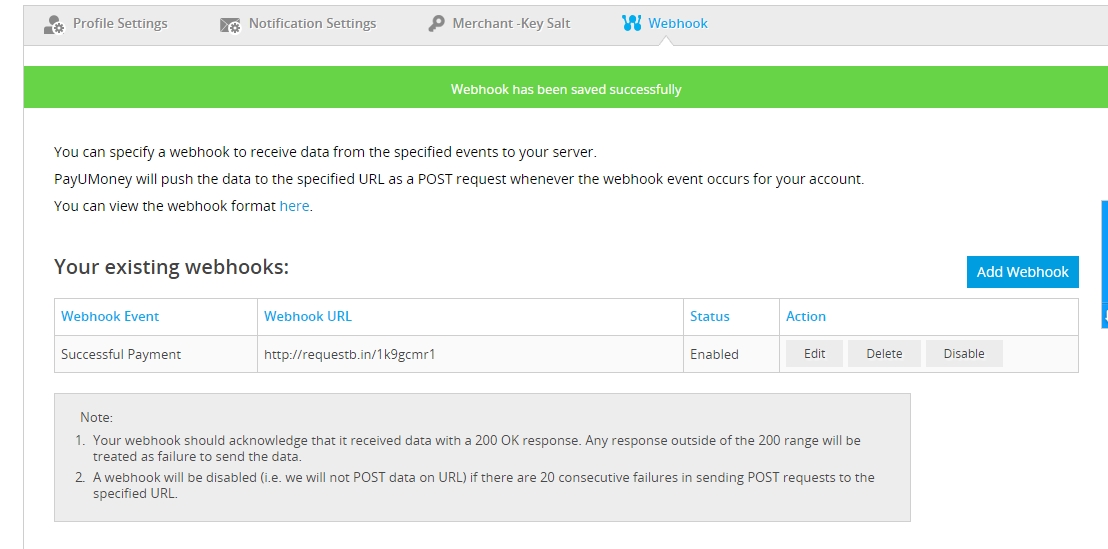
Once your webhook is created then from the next time whenever the webhook event will occur, a callback to your webhook url will be sent.

Leave a Comment